
Analyze the Script for Key Moments
Read your script carefully to identify the core actions and emotional beats of each scene. Don't worry about camera angles yet; focus on what is happening visually and textually. Highlight the specific moments where the dialogue changes or the action intensifies. This step ensures you don't miss critical beats and provides a solid foundation for the visual planning process.
- Highlight key dialogue lines.
- Identify physical actions and locations.
- Note the emotional tone of each beat.
Define Camera Angles for Each Beat
Map specific camera angles to your script beats. A wide shot establishes the setting, while a close-up captures facial expressions. On the platform, input these angle descriptions alongside your script lines. This instructs the AI exactly how to frame the actor, ensuring the visual style matches your directorial intent without needing expensive physical equipment or lights.
- Wide shot: Establish setting and context.
- Close-up: Focus on facial expressions.
- Medium shot: Balance action and dialogue.
Scripts you can shoot right now

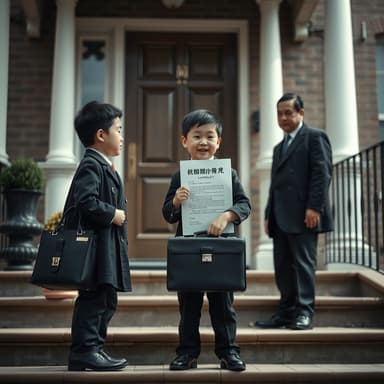


Generate Reference Images
Use the script-to-image feature to visualize the scene. Input the scene text and select the camera angle you defined previously. The AI will produce a visual reference for that specific shot. Review these images to check lighting and composition. If the lighting looks wrong, adjust the prompt or use the remake feature to regenerate until it fits your vision.
- Select the correct actor template first.
- Adjust the text prompt for lighting.
- Use the 'Remake Template' for corrections.
Create a Linear Shot List
Organize your generated images into a linear shot list. Number them to match the script sequence. This list serves as your production guide. When you are ready to shoot, simply click the corresponding image to load the scene into the video editor. This workflow prevents confusion on set and ensures continuity between scenes without needing to re-explain the vision.
- Number shots sequentially.
- Attach audio files to storyboard images.
- Export the list for your team.